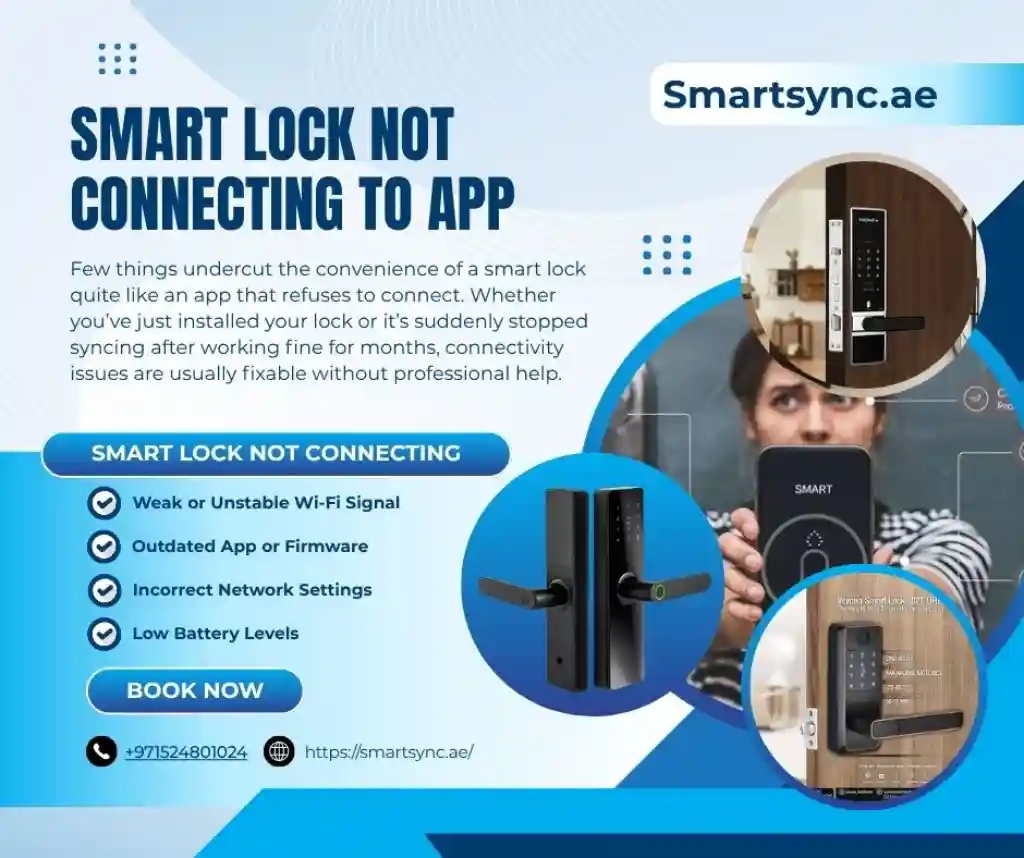
Few things undercut the convenience of a smart lock quite like an app that refuses to connect. Whether you’ve just installed your lock or it’s suddenly stopped syncing after working fine for months, connectivity issues are usually fixable without professional help. Here’s a walkthrough of the most common causes and how to resolve them.
Common Reasons Smart Locks Fail to Connect
Weak or Unstable Wi-Fi Signal
Smart locks, particularly those relying on Wi-Fi rather than Bluetooth, need a stable connection to communicate with their app. Locks installed far from your router are especially prone to connectivity drops.
Bluetooth Range or Interference
For Bluetooth-based locks, being too far from your phone or having interference from other devices can prevent a stable connection during setup or daily use.
Outdated App or Firmware
Smart lock manufacturers regularly release updates to improve stability and security. Running an outdated app version or lock firmware can cause connectivity problems.
Incorrect Network Settings
Some smart locks work only with specific Wi-Fi bands, such as 2.4GHz, and using an incompatible network can prevent successful setup.
Low Battery Levels
A lock running low on battery may struggle to maintain a stable connection, even if the batteries technically still have some charge remaining.
Step-by-Step Troubleshooting Guide
Step 1: Check Your Wi-Fi Connection
Confirm your home Wi-Fi is working properly on other devices, and verify you’re connecting to the correct network band if your lock has specific requirements.
Step 2: Restart the App
Close the app completely and reopen it, or restart your phone if issues persist — this resolves a surprising number of temporary glitches.
Step 3: Check for Updates
Ensure both the companion app and the lock’s firmware are updated to their latest versions, as connectivity bugs are often addressed in updates.
Step 4: Move Closer to the Router or Lock
If using Bluetooth, move your phone closer to the lock during setup. For Wi-Fi-based locks, consider whether a Wi-Fi extender might help if the lock is far from your router.
Step 5: Restart the Lock Itself
Removing and reinserting batteries, or using a manual reset if available, can resolve persistent connectivity glitches.
Step 6: Re-Pair the Device
If reconnecting doesn’t work, removing the lock from the app entirely and going through the initial setup process again often resolves stubborn connection issues.
Step 7: Check for Network Conflicts
If multiple smart home devices are connected to your network, occasional conflicts can occur — temporarily disconnecting other devices during troubleshooting can help isolate the issue.
When to Contact Support
If you’ve worked through these steps without success, it’s worth contacting the manufacturer’s support smart lock services team, as the issue may involve a hardware fault or a more specific bug requiring their assistance.
Preventing Future Connectivity Issues
- Keep both the app and lock firmware updated regularly rather than waiting for problems to appear.
- Position your router thoughtfully if installing a Wi-Fi-based lock far from your main network hub.
- Replace batteries proactively rather than waiting until they’re critically low.
- Avoid overloading your home network with too many simultaneous smart home connections.
Conclusion
A smart lock that will not connect to its app can be frustrating, but the cause is often straightforward — a weak signal, outdated firmware, or a temporary glitch that can be resolved by restarting the device. Following these troubleshooting steps methodically can resolve most connectivity issues without requiring a technician, restoring keyless access quickly.